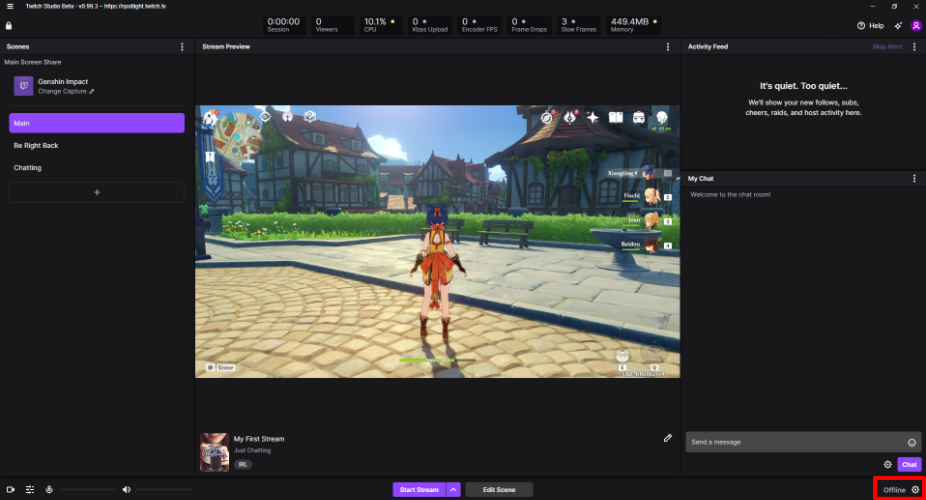
Twitch Studio user interface
Scenes sidebar
In the Scenes sidebar, see a list of your scenes. Right click a scene name to delete, duplicate, edit, or rename it. Click the plus icon at the bottom to add a new scene.
To share a game screen, select the Main scene and click Change Capture.
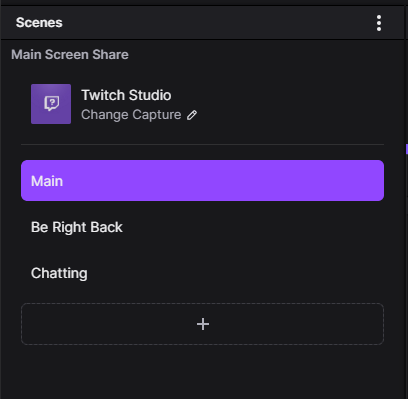
Note: To add screen capture to a particular scene, the scene must have a Screen Share layer. You can add or modify layers in the Edit Scene menu.
Stats Panel
Notice the stats panel at the top of the screen. These metrics will help you monitor your stream quality in real time. Check your frame rate, upload speed, and % demand on your CPU. You can also see how many viewers are tuning in to your current stream and the duration of the streaming session. Click the padlock icon to remove stats from the panel or drag and drop them in any order.

To the right of the stats bar, you’ll see a series of buttons. Use the Help button to report a bug, request a new feature, consult the FAQs, or even join the Twitch Studio Discord server to discuss all things Twitch Studio.
Click the Stars button to open the Twitch Studio news feed, where relevant articles and tutorials are posted.
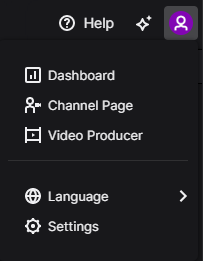
Click your avatar to interact with your Twitch account. You can open your Twitch dashboard, which you’ll notice looks and behaves quite similar to the Twitch Studio interface. If you prefer sharing recorded content to live streaming, click Video Producer. Here, you can select videos you’ve recorded on Twitch Studio and upload them to your Twitch channel.
Activity Feed
When viewers take a new action to support your channel, you’ll receive a notification or alert in your Activity Feed. Examples of these actions include subs, follows, gifted subs, bits, hosts, and raids.
The difference between notifications and alerts is that notifications only show up in your Activity Feed, whereas alerts can display both in your Activity Feed and on your stream.
Click the 3 dots icon to toggle feed notifications and alerts on or off.
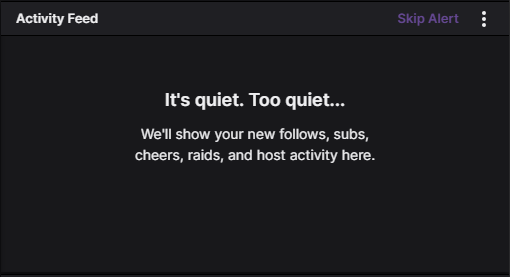
Note: To share alerts on a particular scene, the scene must have a Twitch Alerts layer. You can add or modify layers in the Edit Scene menu.
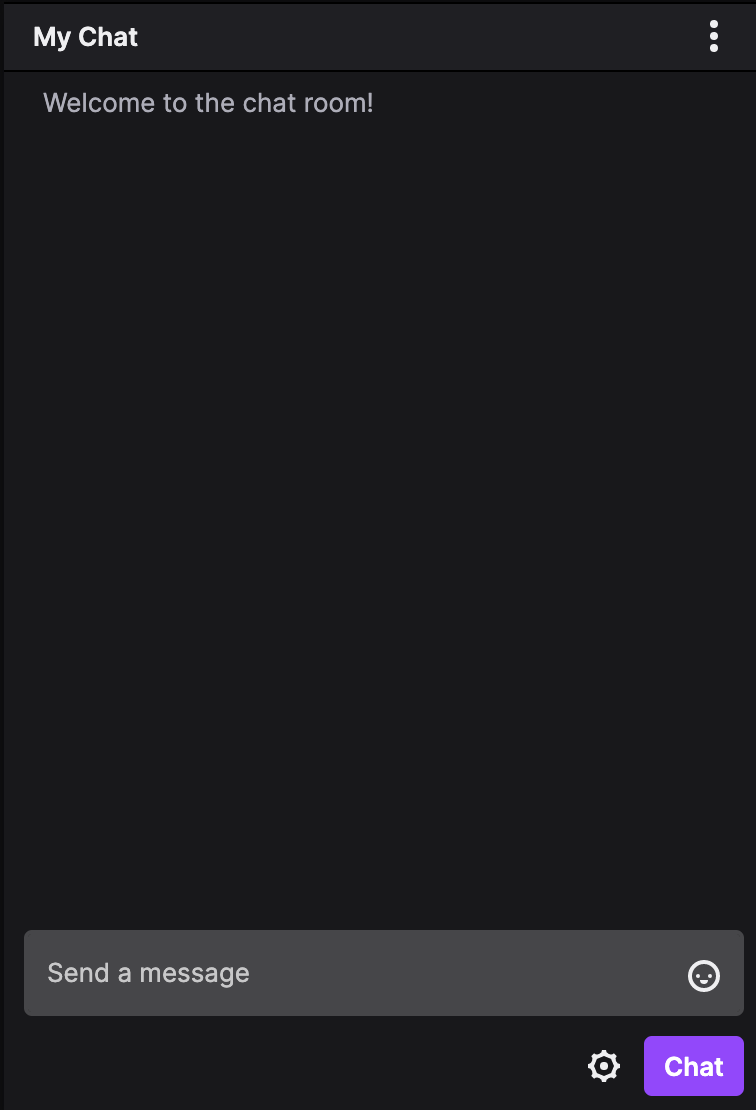
Chat
Interact with your audience! In the chat window, you have the ability to read and send messages to your viewers in real time. Click the cogwheel to open chat settings and enable moderation actions– like emotes-only chat 😮😮😮 or followers-only chat.
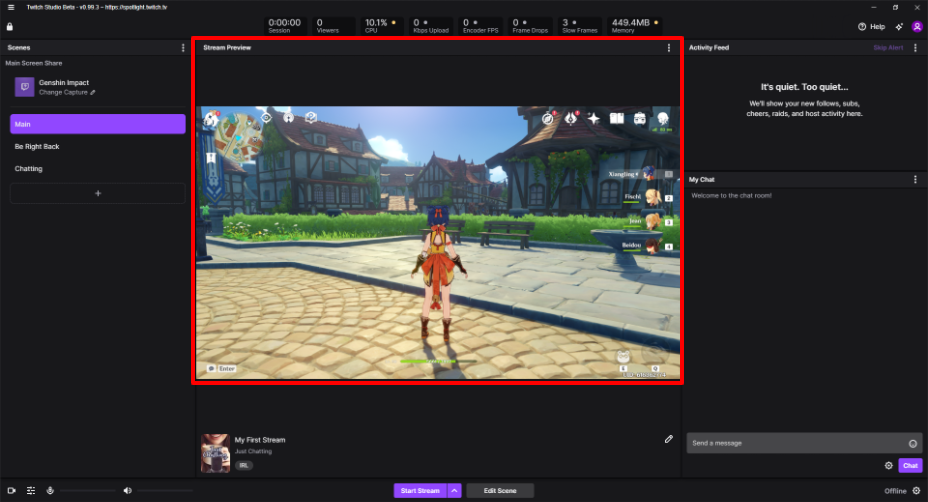
Stream Preview
Before you start streaming, check out your scenes and customizations in the Stream Preview window. You can also use Stream Preview while streaming to make sure your viewers are seeing everything you want them to see.
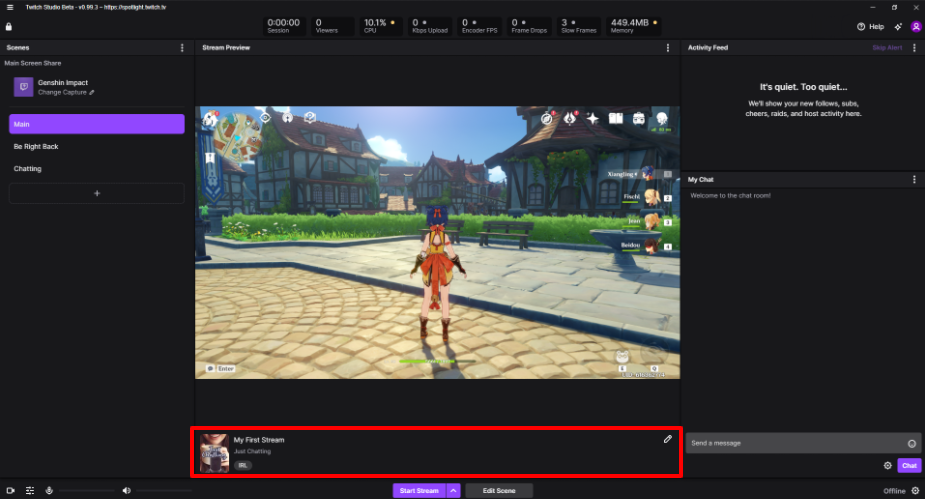
Stream info
Click the pencil icon to add or edit the title, category, and tags for your current stream.
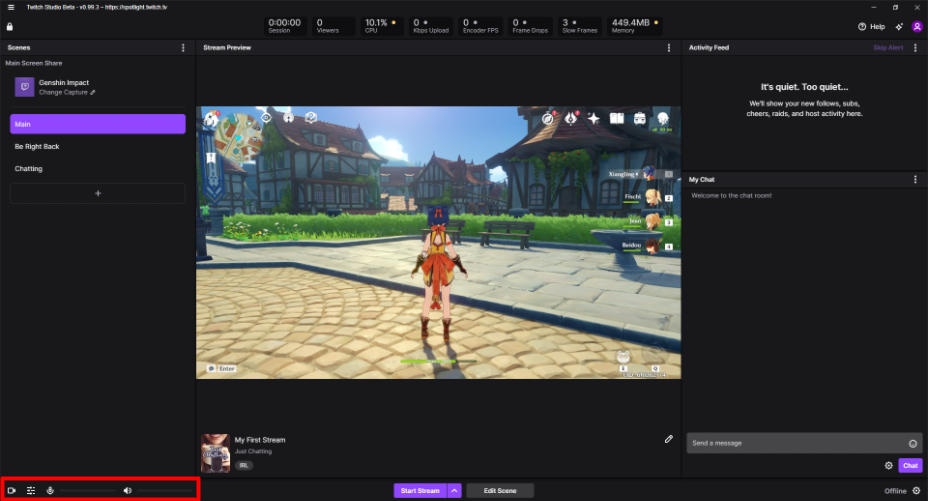
Audio/Video Controls
Toggle your webcam on and off with a single click. Use the slider tool to adjust the volume on each audio device. You can also click the mic or speaker icon to mute either device.
General settings
Click the cogwheel to open the General Settings menu. Here, you can add transitions, add or swap an audio device, adjust stream quality settings, and customize hotkeys.
Now that you’re familiar with the Twitch Studio user interface, why not try some tutorials?