Installing Twitch Studio
Twitch Studio is a desktop application for live streaming and recording videos. It’s designed for people who are new to streaming and need a beginner-friendly tool to set up their first broadcasts.
What you’ll need
- Microphone
- Webcam
- A Twitch account. If you don’t already have one, sign up here.
Download
Twitch Studio is available to download on both Windows and Mac. First, check that your operating system is up to date.
If installing on Windows:
- Windows 7 or newer
For Mac users:
- Mac Mojave 10.14 or newer
Then, download Twitch Studio here.
Installation
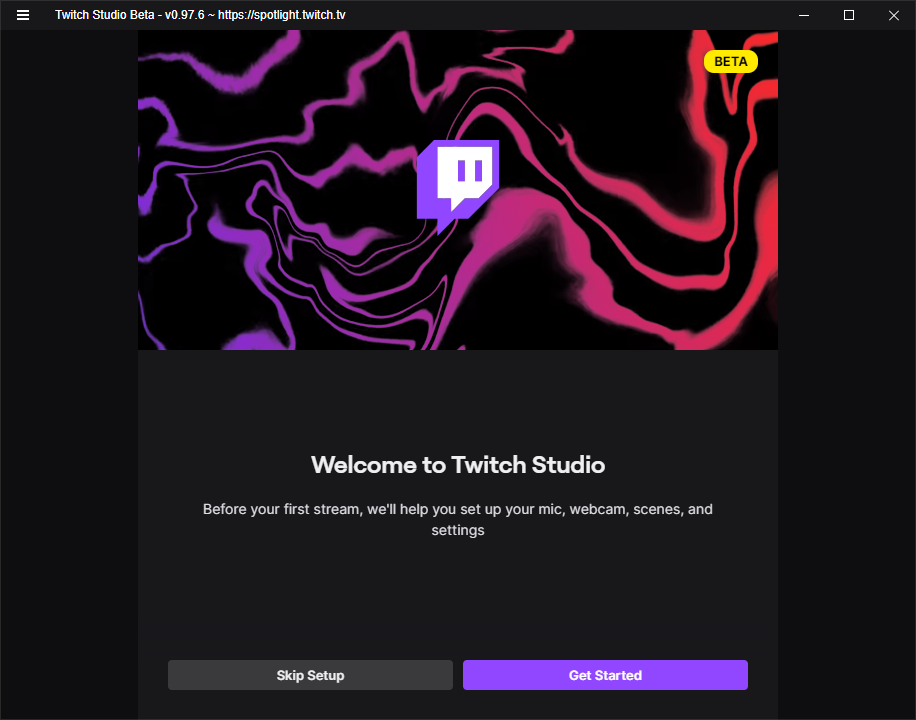
The first time you launch the app, you’ll be prompted to set up your microphone, webcam, scenes, and settings. Let’s walk through this process together.
-
Click to get started.
-
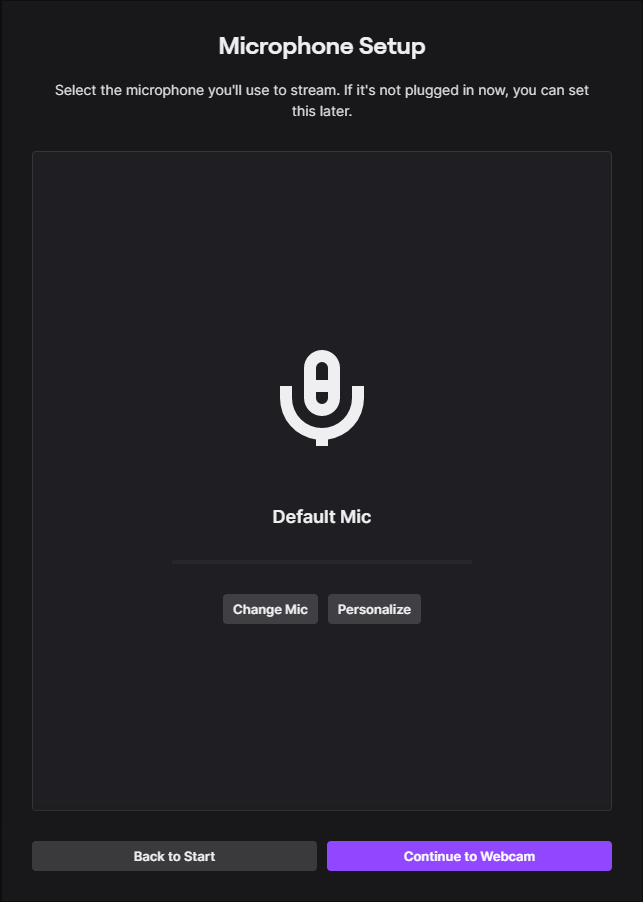
The app will detect a default microphone– keep the default or click Change mic to view other options. Select the microphone you want to use and click Continue to webcam.
-
If your webcam is connected, you should see it on the Webcam preview window.
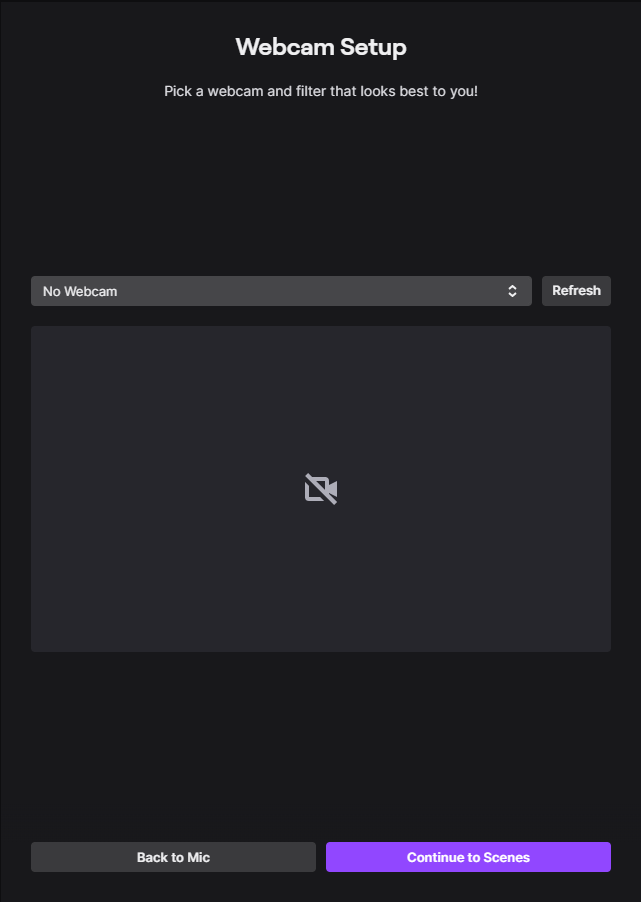
Note: If you were not asked to set up a webcam, Twitch Studio might not have permission to access your webcam. Skip for now and we can grant permission in the app.
-
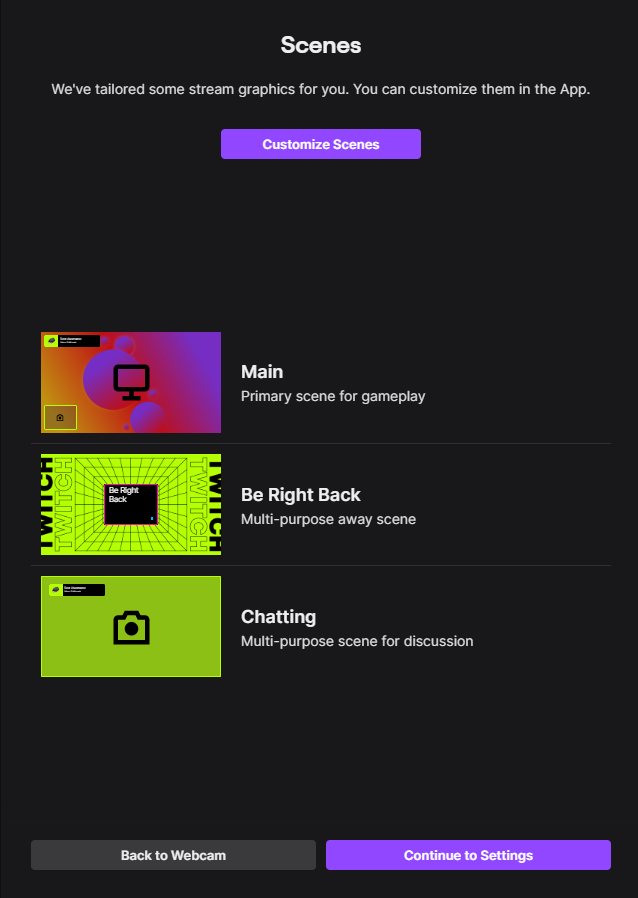
Notice you have three custom scenes to use during your live stream. Scenes are created using graphics from Twitch Studio’s media library. If you want to start exploring the media library now, click Customize Scenes.
a. In the new window, see your three scenes and a sidebar called Brand Assets.
b. Scroll through the sidebar to pick new colors, an accent image, wallpaper, and pattern.
c. Or, click the refresh logo at the top right to generate a random combination of colors and media.
d. Click Done.
You don’t need to finalize your scenes just yet. They can be fully customized in the app. Click Continue to Settings.
-
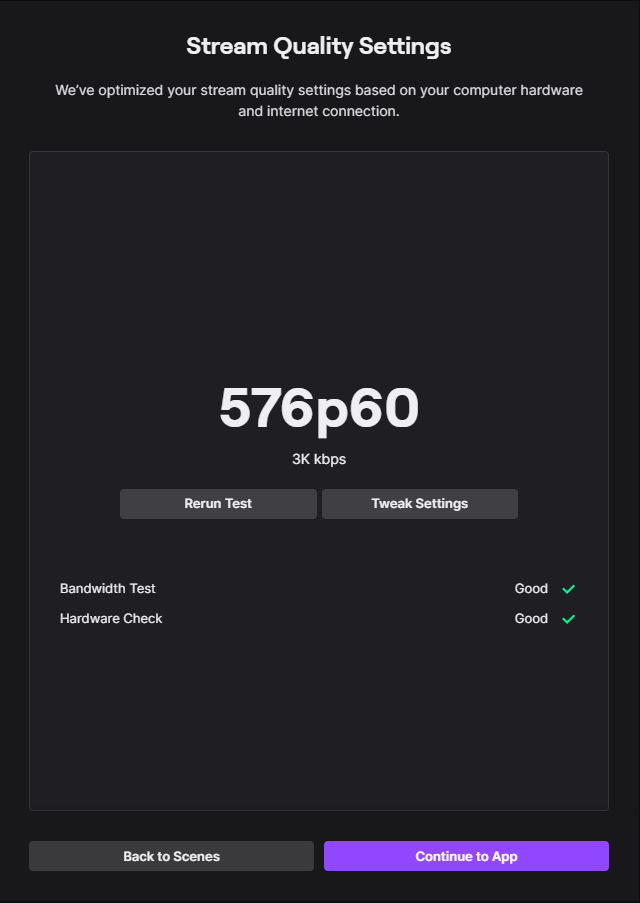
Lastly, let’s test your stream quality. (This might take a minute). Your stream settings will be optimized based on your current setup. You shouldn’t have to tweak any settings. Click Continue to App.
Note: Streaming can be demanding on your PC. If either the bandwidth test or the hardware check are “Poor”, you can still continue to the app. Just know that your stream may look choppy.
Once you’re in the app, see the tutorial How to set up live stream.